

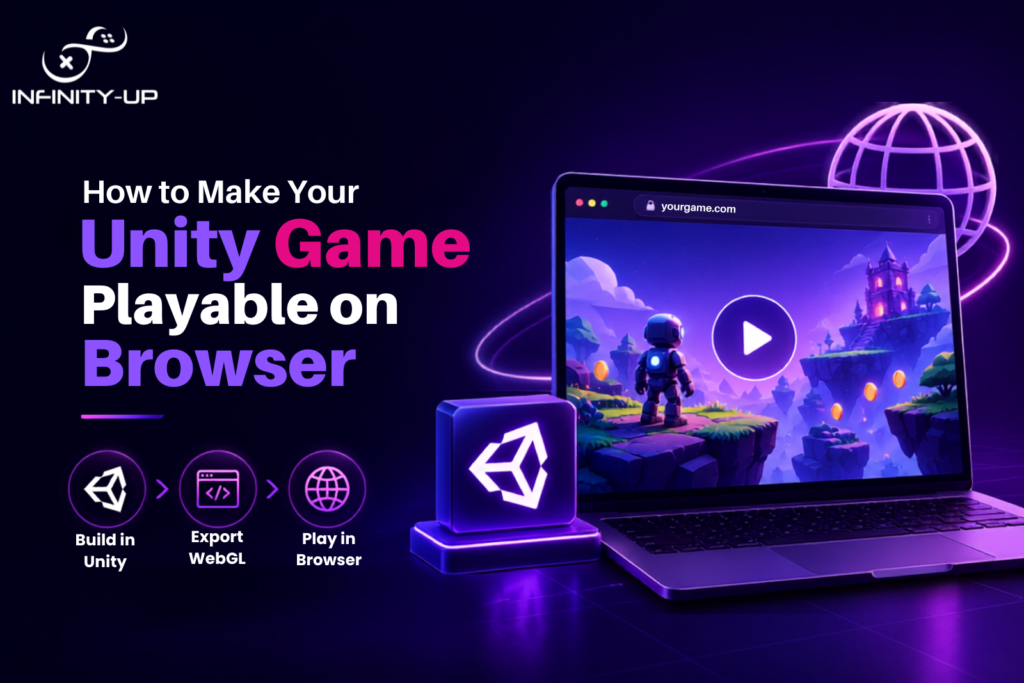
To increase the number of players for your Unity game, there is nothing easier than its publication via a web browser. Users will have an opportunity to launch your game by clicking on a link, rather than having to download and install the game. Thanks to the WebGL platform which is used by Unity, you will be able to execute your game right in a modern browser such as Chrome, Edge, Firefox and Safari.
No matter whether you are developing a game for your portfolio, your business or a publicly available product, a Unity WebGL Build will help you gain more customers. This article will tell you about Unity game development in a web browser, starting from the process of setting up your project and building your game in WebGL to optimization of the performance, its online hosting and troubleshooting.
Can You Play a Unity Game in a Web Browser?
Yes. Unity allows developers to publish games for web browsers using its WebGL platform. Instead of creating a desktop application, Unity converts your project into a browser-compatible build that runs with WebAssembly (WASM) and modern web technologies.
Players simply visit a webpage and the game loads without requiring any software installation. This makes browser-based games easier to share, test and update.
What Is Unity WebGL?
The Unity WebGL is the platform from Unity used in creating browser games. It converts your game into a package that can be executed in browsers via WebGL and WebAssembly, enabling the player to play the game without downloading an executable.
WebGL builds are compatible with most modern browsers and also have many functionalities available in desktop applications. This notwithstanding, since the browser environment has certain limitations in terms of memory and performance, it is vital to optimize your game before going live.
Benefits of Publishing a Unity Game Online
Publishing a Unity game in a browser offers several advantages:
- No download or installation required
- Easy to share with a simple URL
- Works across major web browsers
- Faster updates without reinstalling the game
- Great for demos, portfolios, prototypes, and educational games
- Makes your game accessible to more players
Using Unity WebGL is one of the simplest ways to turn your Unity project into a browser-based game while keeping the experience smooth and user-friendly.
What You Need Before Exporting a Unity Game to WebGL
Before you create a Unity WebGL build, take a few minutes to prepare your project. A properly configured project is more likely to build successfully and run smoothly in a web browser.
Install WebGL Build Support in Unity Hub
First, make sure your Unity installation includes WebGL Build Support.
To check:
- Open Unity Hub.
- Go to the Installs tab.
- Find your Unity version and click Add Modules.
- Select WebGL Build Support and install it.
Without this module, the WebGL platform won’t appear in your Build Settings.
Check Your Unity Version
Using a recent Unity version gives you better WebGL performance, improved stability and access to the latest features. If you’re working with an older version, review your project’s compatibility before upgrading to avoid unexpected issues.
Prepare Your Project Assets
Large textures, audio files and unused assets can increase your build size and slow down loading times.
Before exporting your project:
- Remove unused assets.
- Compress large textures.
- Optimize audio files.
- Delete unused scenes and packages.
- Keep your project organized.
A clean project creates a faster and more efficient WebGL build.
Review Scripts and Third-Party Plugins
Not every plugin or system that works in desktop builds is compatible with WebGL.
Before building your game:
- Remove unsupported plugins.
- Replace desktop-only features.
- Check for platform-specific code.
- Test scripts that rely on native system access.
This helps prevent errors after deployment and improves browser compatibility.
How to Make a Unity Game Playable on Browser
Once your project is ready, you can export it as a Unity WebGL build by following these simple steps.
Step 1: Open Build Settings
Go to File > Build Settings in the Unity Editor. Make sure all the scenes you want to include are added to the Scenes In Build list.
Step 2: Select WebGL
Choose WebGL from the platform list and click Switch Platform. Unity will prepare your project for browser deployment.
Step 3: Configure Player Settings
Open Player Settings and review basic options like your product name, screen resolution and publishing settings to ensure everything is set up correctly.
Step 4: Optimize Graphics
Reduce texture sizes, compress assets and remove unnecessary visual effects to improve loading speed and browser performance.
Step 5: Build the Project
Click Build, choose a destination folder and let Unity generate your WebGL files. Keep all generated files together, as they’re required for the game to run.
Step 6: Test Your Game
Run the build on a local web server and test it in different browsers. Check that the game loads correctly, performs smoothly and all features work as expected.
Best Unity WebGL Build Settings for Better Performance
The right Unity WebGL build settings can improve loading speed, reduce file size and create a smoother gameplay experience. Before publishing your game, review these settings.
Right Compression Format
Enable Brotli or Gzip compression to reduce your build size. Smaller files load faster and improve the player experience.
Appropriate Memory Size
Allocate only the memory your game needs. Too little memory can cause crashes, while too much may increase loading time.
Compress Textures
Use texture compression to reduce file size without affecting visual quality. This helps your game load more quickly in the browser.
Enable Data Caching
Turn on Data Caching so returning players don’t have to download the same files every time they visit your game.
Select the Right Build Template
Choose a build template that fits your project. You can also customize it to match your website or branding if needed.
How to Optimize Your Unity WebGL Game for Faster Loading
A faster game keeps players engaged. Optimizing your Unity WebGL build before publishing can improve both loading speed and overall performance.
Reduce Build Size
Remove unused assets, scenes and packages to keep your project lightweight.
Optimize Images and Audio
Compress textures and audio files to reduce download size while maintaining good quality.
Remove Unused Assets
Delete files that aren’t used in your final build to avoid increasing the project size.
Minimize Draw Calls
Combine objects and use efficient materials to reduce draw calls and improve frame rates.
Asset Bundles
Load assets only when they’re needed instead of loading everything at startup. This helps reduce initial loading times.
Test Performance
Test your game on different browsers and devices to identify performance issues before release.
Where to Host Your Unity WebGL Game
After building your project, you’ll need a hosting platform so players can access your game through a browser. Here are some popular options.
| Hosting Platform | Best For |
|---|---|
| GitHub Pages | Personal projects and portfolios |
| Netlify | Fast deployment with a free plan |
| Firebase Hosting | Secure and scalable web hosting |
| itch.io | Publishing and sharing indie games |
| AWS S3 | Large projects and production environments |
| Your Own Website | Businesses and custom game portals |
Choose the platform that fits your project size, budget and audience.
How to Embed a Unity WebGL Game on Your Website
If you have your own website, you can easily add your Unity WebGL game.
The basic process is simple:
- Upload your WebGL build files to your web server.
- Keep all generated files in the same folder.
- Open the index.html file through your website.
- Test the game on desktop and mobile browsers.
- Make sure your website uses HTTPS for better compatibility.
Embedding your game on your own website gives you more control over branding, updates and user experience.
Common Unity WebGL Problems and How to Fix Them
Even a successful build can run into issues after deployment. Here are some common problems and quick solutions.
Game Won't Load
Make sure all build files are uploaded correctly and your server supports the required file types.
Black Screen
Check your graphics settings and browser compatibility. Updating Unity or clearing the browser cache may also help.
Memory Errors
Reduce your build size, optimize assets and adjust your memory settings if needed.
Missing Textures or Audio
Confirm that all assets were included in the build and that file paths haven’t changed.
Slow Performance
Compress assets, reduce draw calls and remove unnecessary visual effects to make the performance smooth.
Browser Compatibility Issues
Always test your game in multiple browsers, including Chrome, Edge, Firefox and Safari, before publishing.
Unity WebGL vs Desktop Build
Choosing between a Unity WebGL build and a desktop build depends on your project goals and target audience.
Feature | Unity WebGL | Desktop Build |
Installation | Not Required | Required |
Accessibility | Open with a browser | Install before playing |
Sharing | Share a simple URL | Share installation files |
Updates | Instant online updates | Users download updates |
Performance | Good for most games | Better for resource-intensive games |
Best For | Browser games, demos, portfolios | Full PC and Mac games |
If your goal is to reach more players quickly, a Unity WebGL build is often the better choice. Desktop builds are still ideal for larger games that need more system resources.
Need Help Publishing Your Unity Game?
Whether you’re building a browser game from scratch or converting an existing Unity project to WebGL, our team is here to help. We provide custom game development solutions tailored to your project, from performance optimization and browser compatibility to seamless deployment. We’ll make sure your game is fast, reliable and ready for players. Contact us today to explore our game development solutions and launch your Unity game online with confidence.